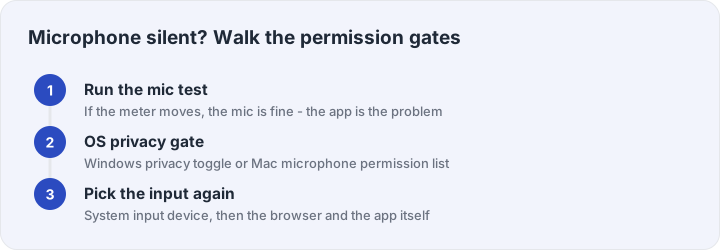
When an app cannot hear you but the microphone hardware is fine, the cause is almost always a permission gate: the operating system or the browser is holding the microphone back. This walk goes from the fastest checkpoint to the deepest fix, in order, and the whole chain takes under ten minutes. Start every diagnosis at the microphone test — it bypasses every calling app and tells you within seconds whether the problem is the mic or the app.
Checkpoint: split the problem in half
Run the test. If the level meter moves and playback sounds right, your microphone and its system settings are healthy — the fault is inside the app that cannot hear you, and you can jump straight to the app-permissions step. If the meter does not move here, the system is blocking every app at once, and the OS steps below are your fix. This one checkpoint saves the most time, because permission problems look identical to hardware problems from inside a dead app.
Windows: the two settings that eat microphones
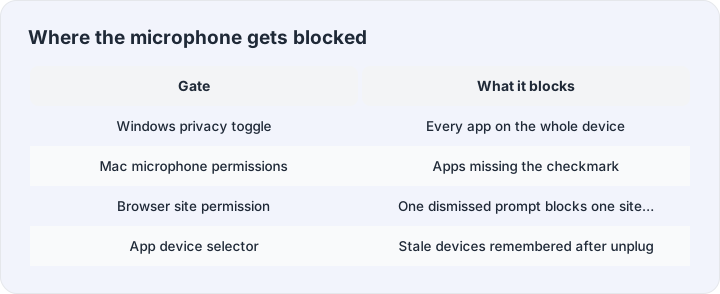
Privacy gate first. Windows 10 and 11 keep a master kill switch for microphone access: Settings → Privacy & security → Microphone. Both toggles at the top matter — “Microphone access” for the whole device and “Let apps access your microphone” for classic apps. If either is off, every test on every site fails identically, which is why a suddenly silent mic after a Windows update almost always lives here. Scroll down and make sure the specific desktop app that cannot hear you is also allowed — the per-app list is easy to miss.
Input device second. Settings → System → Sound → Input shows which device Windows is actually listening to. External webcams, headset adapters and monitor microphones all register as inputs and frequently steal the default slot after a replug. Select the microphone you mean to use, watch the input level bar in that settings page while you speak — Windows shows its own meter there — and if that bar moves while our test page does not, the browser layer is your next stop.
Mac: input selection and the permission prompt you dismissed
macOS keeps the same two-layer structure. In System Settings → Sound → Input, pick the correct microphone and watch the input level respond to your voice; a moving level there proves the hardware and its driver. Then System Settings → Privacy & Security → Microphone lists every app that ever asked — and the checkmark you never granted, or granted to the wrong app version after an update, is the usual culprit. Toggle the app off and on, or remove and re-add it, to force a fresh prompt.
Browser prompts and site permissions
The first time any site wants your microphone, the browser shows a permission prompt, and a quick “Block” click becomes a permanent, silent block. In Chrome or Edge, click the padlock (or tune icon) at the left of the address bar, set Microphone to Allow, and reload the page. In Safari, Settings → Websites → Microphone lists per-site permissions with the same fix. Browsers also have a default microphone device of their own — if the browser picked your webcam’s mic years ago, every site uses that mic until you switch it, either on the site’s own settings or in the browser’s site permissions.
USB and headset traps
Headsets with their own USB dongle create a second audio device pair, and headset boom mics frequently have an inline mute that software cannot see — flip it, unplug and replug the dongle, and re-run the test after each change. If the meter moves here but a specific calling app still cannot hear you, that app has its own audio device selector — its settings, not the system’s, choose the microphone, and they remember stale devices after unplug events. Pick the mic again inside the app and the chain closes.